Complete troubleshooting guide for your Airtel 5G router. Find default passwords, admin login details, LED indicator meanings, factory reset instructions, and solutions to all common Airtel router problems.
This guide covers device-specific information including default credentials, IP addresses, LED status indicators, SIM card installation, and step-by-step solutions for Kenya users.
Need a new router? We offer fast delivery of Airtel SmartConnect 5G routers. Order now for quick setup and reliable connection.
Looking for the default login credentials for your Airtel SmartConnect 5G Router? Here's everything you need to access the admin panel and configure your device.
Default Admin Login Credentials:
Username:admin
Password:admin
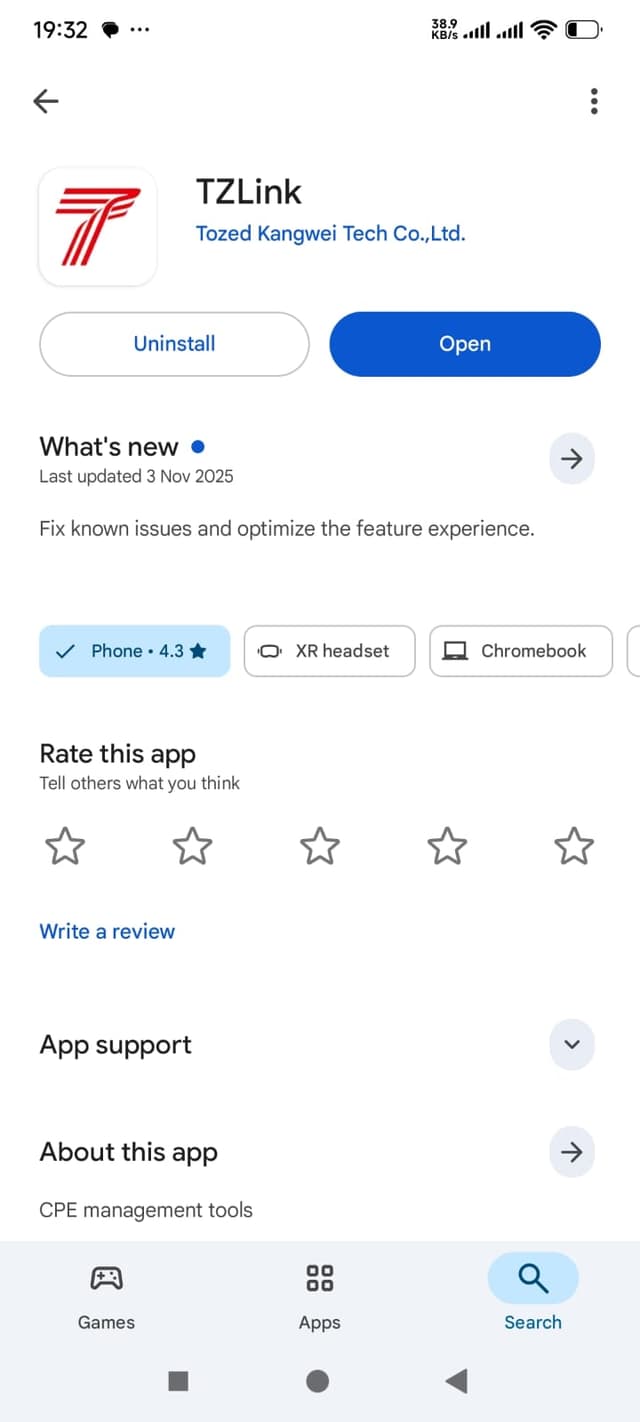
Use these credentials to login at 192.168.1.1 or in the TZLink mobile app
Access router settings via web browser or mobile app
💡 Tip: All default information (WiFi passwords, SSID, IP address, admin credentials) is printed on the label at the back of your router. See the Device Label section below for details.
03
📋 Technical Specifications
Understanding the technical specifications helps ensure proper installation and operation of your Airtel SmartConnect 5G Router.
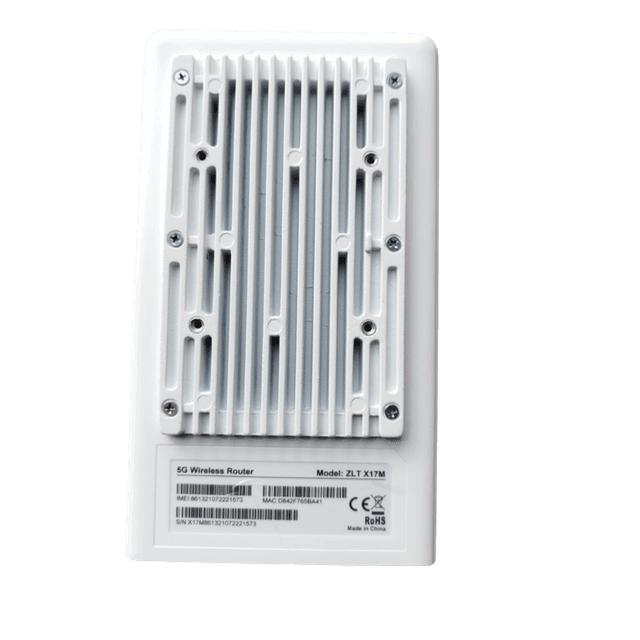
Outdoor Unit (Antenna) - ZLT X17M
• Operating Temperature: -30°C to +60°C (performance may be limited below -30°C)
• Relative Humidity: 5% to 95%
• Size: 195mm × 110mm × 42mm
• Weight: Approximately 600g
Indoor Unit (Router) - ZLT W304VA PRO
• Working Temperature: 0°C to +40°C
• Relative Humidity: 5% to 95%
• Power Supply: AC 100V-240V, 50Hz-60Hz
• Output: DC 12V/2A
• Size: 230mm × 140mm × 150mm
• Weight: 470g
💡 Important: Ensure your installation location meets these temperature and humidity requirements for optimal performance. The outdoor unit can operate in extreme temperatures, but performance may be limited below -30°C.
04
💡 Understanding LED Indicators
LED indicators are your first clue to diagnosing router issues. Here's what each LED color and pattern means for your Airtel SmartConnect 5G Router.
Router LED (Center Button)
The router has a single LED at the center button that shows the boot sequence and power status:
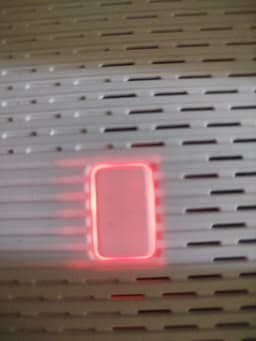
Red LED - Initial Boot
Router is starting up. This is normal during power-on. The LED will quickly change to purple/violet (mixed color), where most of the boot time is spent.
Purple/Violet LED (Mixed Color) - Booting
Most boot time is spent here. The LED shows a purple/violet mixed color (combination of red and blue). This is the main boot phase where the router is initializing its systems. This happens after red and before blue.
Blue LED - Connecting
Very brief - you might miss it! Router is establishing connection. This happens very quickly after the purple/violet phase, then rapidly switches to green. It's normal if you don't see this blue phase.
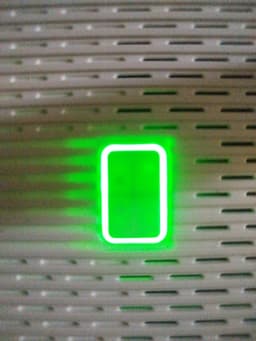
Green LED - Powered On
Router is fully booted and WiFi SSID is visible. Important: Green router LED only means the router is on - it does NOT indicate good internet connection. Check the antenna signal LED below for actual connection status.
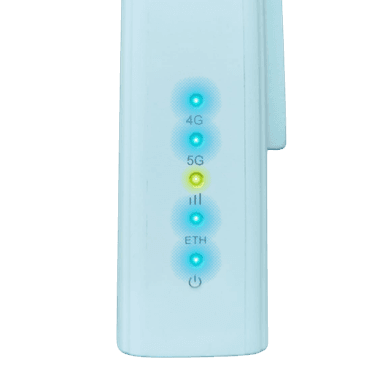
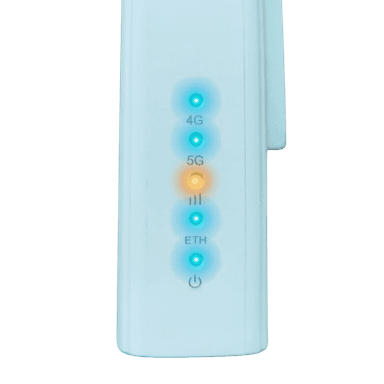
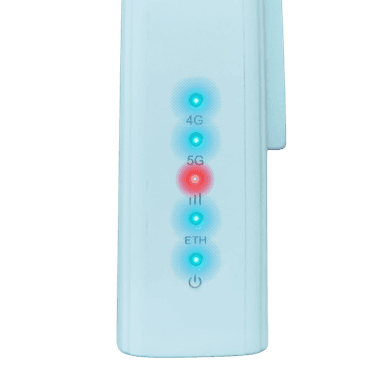
Outdoor Unit (Antenna) LEDs - Complete Guide
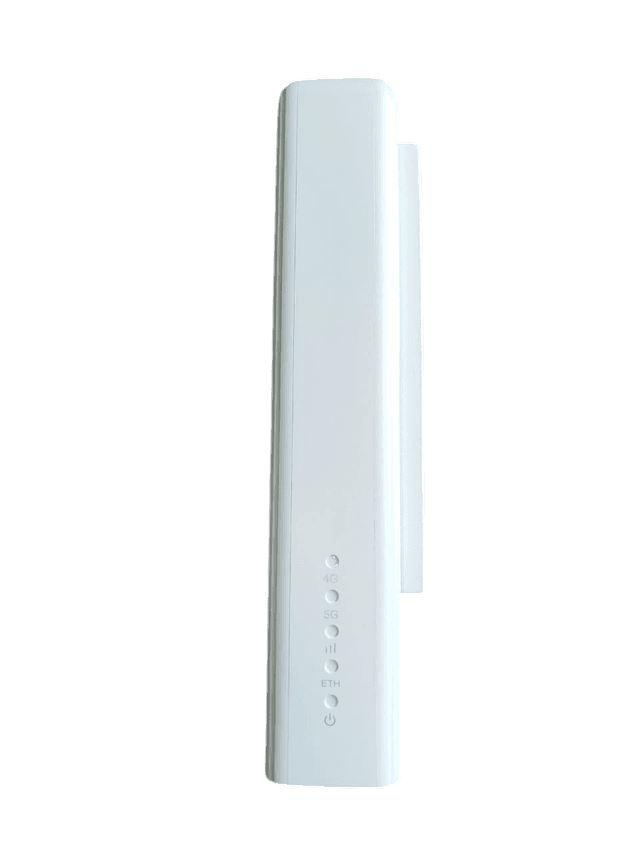
The outdoor unit (antenna) has 5 LED indicators that show different status information. Understanding all of them helps diagnose issues:
Airtel SmartConnect Antenna - 5 LEDs Total
All Outdoor Unit LED Indicators:
LED 1: 4G Status
● On: Device connected to 4G network | ○ Off: Not connected to 4G
LED 2: 5G Status
● On: Device connected to 5G network | ○ Off: Not connected to 5G
LED 3: Signal Strength
🔴 Red: Weak signal |🟡 Yellow: Medium signal |🟢 Green: Excellent signal | ○ Off: No signal
LED 4: ETH (Ethernet)
● On: Network port connected normally |⚡ Flashing: Data transmitting | ○ Off: Not connected
LED 5: Power
● On: Device powered normally | ○ Off: Power issue
The signal strength LED (LED 3) is the most important for troubleshooting - it shows your actual internet connection quality:
🟢 Green Signal LED - EXCELLENT
This is what you want! Green means you have excellent signal strength and the best possible connection. Your internet should work perfectly with fast speeds.
Avoid this at all costs! Red means you're not receiving signal or have very weak signal. Internet will not work or will be extremely slow. You need to reposition the antenna.
❌ No/poor connection | ❌ Very slow or no internet | ⚠️ Needs repositioning
The indoor unit (router) has LED indicators that show different operational states:
Blue (Flashing)
Starting MESH network
Blue (Bright)
MESH network is running
Green (Bright)
Normal working condition
Red (Flashing)
MESH network timeout or failure
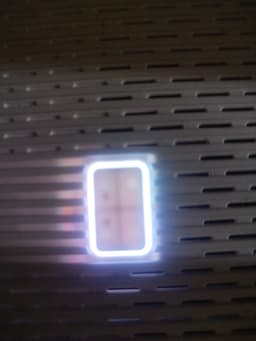
White (Flashing)
Restored to factory settings or in the process of upgrading
Normal Boot Sequence:
1. Router LED turns red (initial boot - brief)
2. Router LED changes to purple/violet (mixed color - most boot time spent here)
3. Router LED changes to blue (connecting - very brief, you might miss it)
4. Router LED turns green (router ready)
5. Antenna power LED (LED 5) lights on
6. Antenna 4G/5G status LEDs (LED 1 & 2) show network connection
7. Antenna signal LED (LED 3) shows connection quality (green = excellent, yellow = medium, red = weak)
8. Antenna ETH LED (LED 4) shows ethernet connection status
05
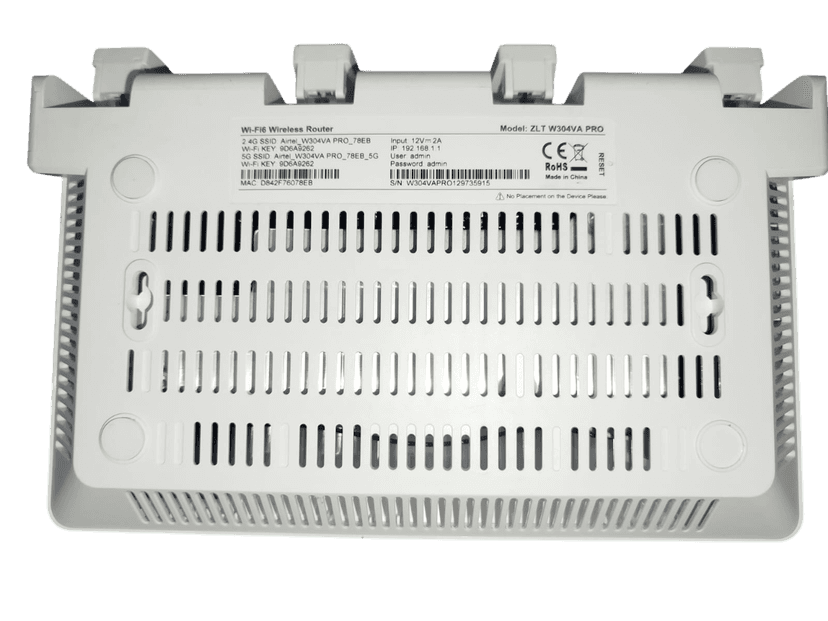
🏷️ Device Label Information (Default Passwords & Settings)
All important default information is printed on a label located at the back of the router. This label contains all the credentials and settings you need:
Router Back Label - Contains all default information
• 2.4GHz WiFi SSID (network name) and password
• 5GHz WiFi SSID (network name) and password
• Default IP Address: 192.168.1.1
• Default Admin Username: admin
• Default Admin Password: admin
• Input voltage specifications
• MAC address and serial number
💡 Pro Tip: If you've forgotten your WiFi password or changed the admin password, you can find the defaults on this label. If you've changed them and forgotten, you'll need to perform a factory reset to restore defaults.
06
🔄 How to Factory Reset Airtel SmartConnect Router
Factory reset restores your router to default settings (default WiFi password, default admin password, etc.). This is useful if you've forgotten your passwords or need to start fresh.
⚠️ Warning: Factory reset will erase all your custom settings including WiFi passwords, admin password changes, and network configurations. You'll need to set everything up again after reset.
Step-by-Step Factory Reset Instructions:
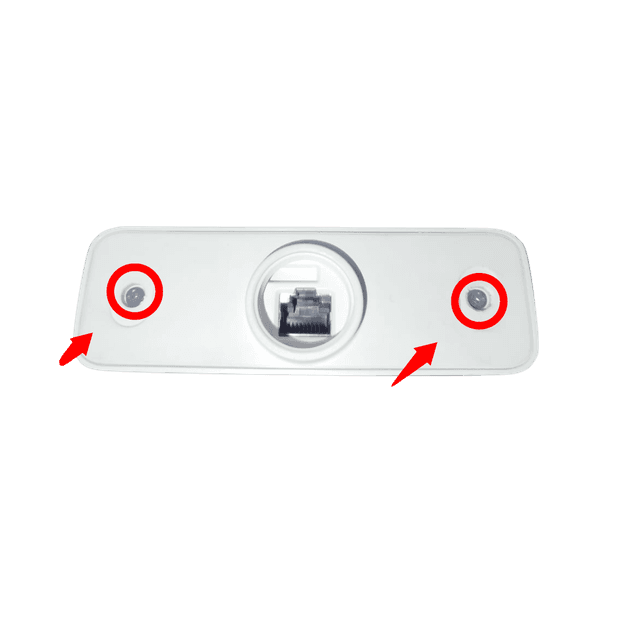
Step 1: Locate the antenna (the device that's usually mounted outside). The reset button is inside the antenna, not on the router.
Step 2: Open the two small screws at the bottom of the antenna to access the internal compartment.
Step 2: Open the two screws at the bottom
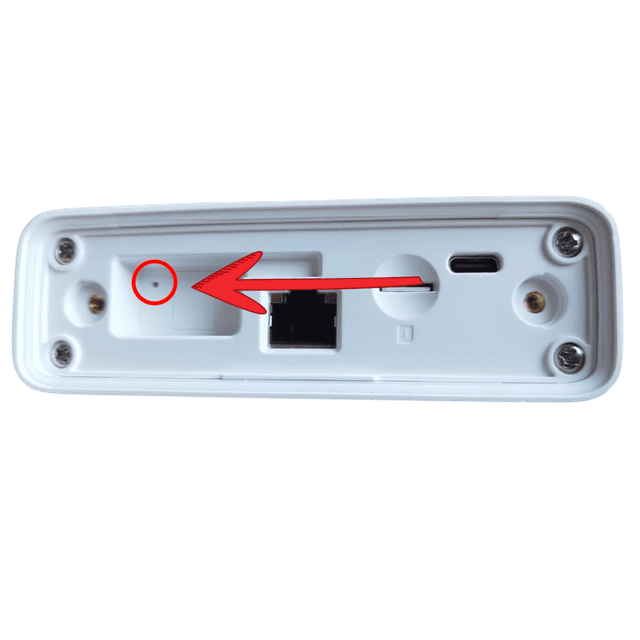
Step 3: Inside, you'll see a small reset button (a small dot/button). This is the factory reset button.
Step 3: Locate the reset button inside
Step 4: Using a small pin, needle, or paperclip, carefully press and hold the reset button.
Step 5: Continue holding until you see the side LEDs on the antenna start blinking. This indicates the reset process has started.
Step 6: Release the reset button and wait for the device to complete the reboot cycle. This may take 2-3 minutes.
Alternative Method (Indoor Unit): The indoor unit (router) also has a RESET button. Press and hold for 6 seconds to restore factory settings. The LED will show white (flashing) when factory reset is in progress.
Step 7: After reboot, the device will have restored to factory defaults. Your WiFi SSID and password will be back to the defaults shown on the device label.
After Reset: You'll need to reconnect all your devices to WiFi using the default password from the device label. You can also change the WiFi password again through the admin panel at 192.168.1.1 using username admin and password admin.
Need a replacement router? We offer fast delivery of new Airtel SmartConnect routers with easy setup. Order a replacement router.
07
🔌 Router Ports & Connections
Understanding the router ports is essential for proper setup. Here's what each port does:
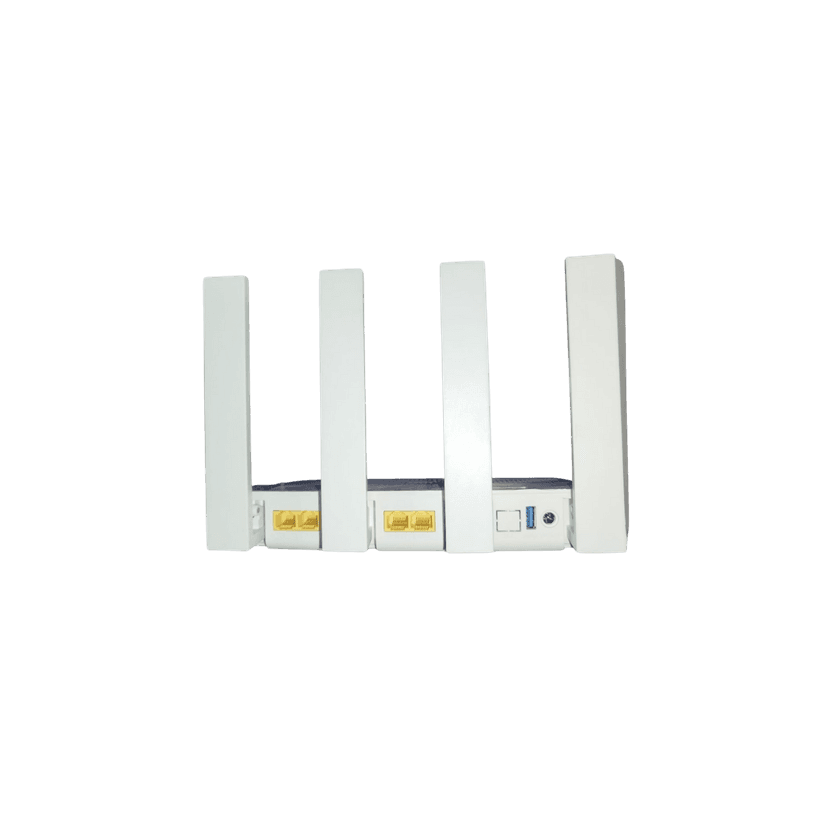
Router Ports - W/LAN1, LAN ports, and USB
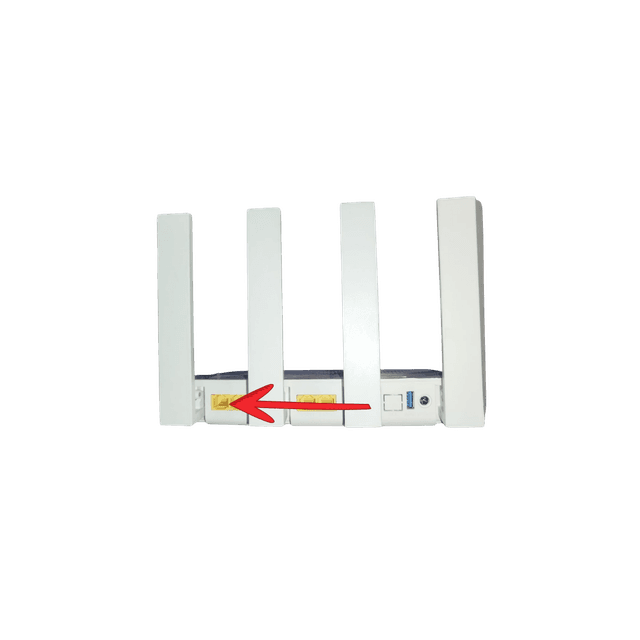
WAN Port (W/LAN1) - Most Important
This is the first port on the router, specifically designed to connect the outdoor unit (antenna) to the indoor unit (router). This port supports POE (Power over Ethernet) power supply and standard protocol for uplink device communication.
⚠️ Critical: The ethernet cable from the antenna MUST be connected to the WAN/W/LAN1 port. If connected to a regular LAN port, the router won't receive signal from the antenna and you'll have no internet. This port also provides power to the outdoor unit via POE.
Installation Note: Use a standard 8-core network cable (CAT5E or CAT6). Put a waterproof protective cover on the cable before inserting it into the RJ45 network port on the outdoor unit. This ensures proper weatherproofing for outdoor installation.
W/LAN1 Port - Connect antenna here
LAN Ports (For Devices)
The router has 3 additional LAN ports for connecting devices via ethernet cable (computers, smart TVs, gaming consoles, etc.). These provide faster, more stable connections than WiFi.
USB Port
The router has a USB port used for data transmission. It can also be connected to an external 5V power supply device if needed.
MESH Button
Press and hold the MESH button for 1-3 seconds to start or configure a MESH network. This allows multiple routers to work together for extended WiFi coverage. The router LED will show blue (flashing) when starting MESH network, and blue (bright) when MESH network is running.
RESET Button
Press and hold the RESET button for 6 seconds to restore factory settings. The LED will show white (flashing) when factory reset is in progress.
08
📱 SIM Card Installation Guide
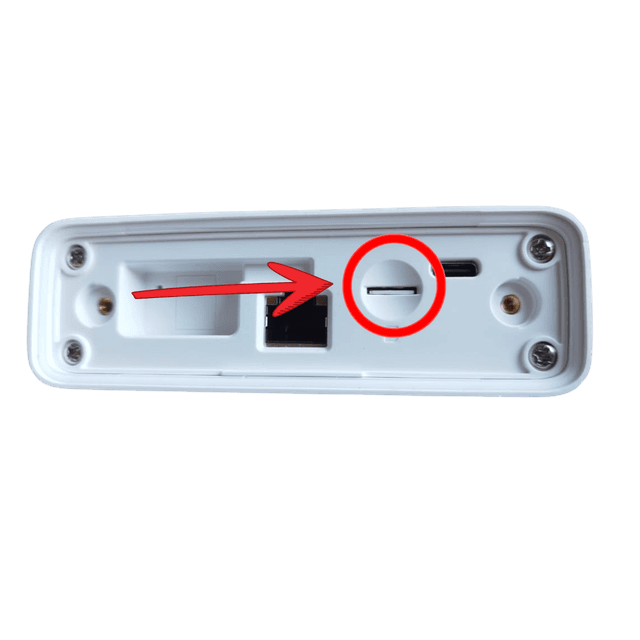
The SIM card slot is located at the bottom of the antenna (the outdoor unit). Follow these steps to properly install your Airtel 5G SIM card.
Step-by-Step SIM Card Installation:
Step 1: Locate the antenna (the device mounted outside). You'll need to access the bottom of the antenna.
Step 2: Open the two small screws at the bottom of the antenna to access the SIM card compartment.
Step 2: Open the two screws
Step 3: With the antenna facing upside down, locate the SIM card slot inside the compartment.
Step 3: Antenna upside down showing slot
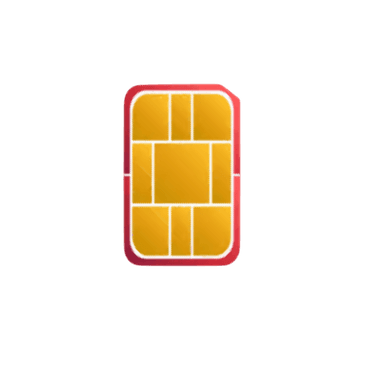
Step 4: Ensure your Airtel 5G SIM card is facing the correct orientation as shown. The SIM card should match the orientation in the slot.
Step 4: Correct SIM card orientation
Step 5: Gently insert the SIM card into the slot until it clicks into place. Do not force it.
Step 5: Insert SIM into slot
Step 6: Close the compartment and tighten the screws.
Step 7: Wait for the device to detect the SIM card. Check the antenna signal LED - it should show green or orange (not red) if the SIM is detected and has signal.
💡 Important: Make sure your SIM card has an active Airtel data plan. The device needs an active data subscription to work. If the signal LED is red after installation, check No Signal troubleshooting.
09
📲 NFC OneHop - Quick WiFi Connection
The router supports NFC (Near Field Communication) for easy WiFi connection without entering passwords.
How to Use NFC OneHop:
1. Ensure your Android device has NFC enabled
2. Locate the NFC area at the lower right corner of the router (indoor unit)
3. Tap your NFC-enabled Android device to the NFC area on the router
4. When your phone shows the connection prompt, click "Connect"
5. Your device will automatically connect to the WiFi network without entering a password
💡 Tip: NFC OneHop can be enabled or disabled in the router's web configuration page under Wi-Fi Settings. This feature only works with NFC-enabled Android devices.
10
⚙️ How to Access Router Settings (Admin Panel)
To change WiFi password, view connected devices, or configure advanced settings, you need to access the router's admin panel.
1. Connect your device (phone, laptop, tablet) to the router's WiFi network
2. Open any web browser (Chrome, Safari, Firefox, etc.)
3. Type in the address bar: 192.168.1.1
4. You'll see a login page. Enter the default credentials:
• Username:admin
• Password:admin
5. Click Login to access the admin panel
💡 These default credentials are also printed on the router label at the back
Can't Access Admin Panel? Make sure you're connected to the router's WiFi network first. You cannot access 192.168.1.1 from outside the network. If you've changed the admin password and forgotten it, you'll need to perform a factory reset.
11
🔐 How to Find Your WiFi Password
Forgot your WiFi password? Here are several ways to find or reset it.
Method 1: Check Device Label (Default Password)
If you haven't changed the WiFi password, it's printed on the label at the back of the router. Look for:
4. You'll see the current WiFi password displayed (you can also change it here)
Method 3: Factory Reset (Last Resort)
If you've changed the password and can't remember it, and you can't access the admin panel, you'll need to perform a factory reset. This will restore the default WiFi password from the device label.
12
Common Problems & Solutions
📶 No Signal or Weak Signal
Problem: Device shows no signal or red signal LED
If your antenna signal LED is red, you're not receiving signal. Check the LED indicators guide to understand what you're seeing.
1. Check the SIM card installation - ensure it's properly inserted in the antenna. The SIM slot is at the bottom of the antenna (requires opening screws)
2. Verify your SIM card has an active Airtel data plan
3. Check antenna positioning - it should face the nearest Airtel cell tower
4. Move antenna to a higher location (rooftop, upper floor) for better signal
5. Remove obstructions between antenna and cell tower (trees, buildings, metal structures)
6. Ensure you're in an area with Airtel network coverage
7. Check the ethernet cable connection between antenna and router. The cable should be connected to the WAN/W/LAN1 port on the router (not the regular LAN ports). Ensure you're using a standard 8-core network cable (CAT5E or CAT6) with proper waterproof protection
8. Check the outdoor unit ETH LED (LED 4) - it should be on (connected) or flashing (data transmitting). If off, check the ethernet cable connection
9. Verify the outdoor unit power LED (LED 5) is on - if off, check POE power supply from the router's WAN port
10. Check outdoor unit 4G/5G status LEDs (LED 1 & 2) - at least one should be on if connected to network. If both are off, there's no network connection
Problem: Weak or unstable signal (orange LED)
Orange signal LED means acceptable but not optimal signal. You can improve it:
1. Reposition antenna to face the nearest cell tower more directly
2. Elevate the antenna higher (rooftop installation is best)
3. Remove any metal objects or thick walls blocking the signal path
4. Check if antenna is properly mounted and not loose
5. Ensure ethernet cable from antenna to router is securely connected to the WAN/W/LAN1 port (the first port, different from regular LAN ports). Check that the outdoor unit ETH LED (LED 4) is on or flashing
6. Verify the outdoor unit is receiving power - check that the power LED (LED 5) is on. The WAN port provides POE power to the outdoor unit
🐌 Slow Internet Speed
Problem: Internet is slower than expected
Slow speeds can be caused by several factors. Check these in order:
1. Check signal strength - if antenna LED is orange or red, you'll have slower speeds. See signal troubleshooting
2. Verify your data plan - check if you've reached your monthly data limit
3. Reduce number of connected devices - more devices share the available speed
4. Move closer to the router if using WiFi - distance affects WiFi speed
5. Check for background downloads or updates on connected devices
6. Restart the router - unplug power, wait 30 seconds, plug back in
7. Network congestion during peak hours (evenings) is normal - try during off-peak times
📡 WiFi Connection Issues
Problem: Cannot connect to WiFi
1. Verify WiFi password is correct - check the device label for default password
2. Check router LED is green - router must be powered on
3. Restart your phone/computer and try connecting again
4. Forget the WiFi network on your device and reconnect with password
5. Move closer to the router - you may be out of WiFi range
6. Check if you're connecting to the correct network (2.4G or 5G SSID)
Problem: WiFi keeps disconnecting
1. Check signal strength - move closer to router
2. Reduce interference from other WiFi networks or electronic devices
3. Update your device's WiFi drivers (for computers)
4. Restart the router
5. Check if too many devices are connected - disconnect unused devices
📱 SIM Card Issues
Problem: SIM card not detected
If antenna signal LED is red and you've checked positioning, the SIM card may not be properly installed:
🔄 How to Resubscribe, Renew, or Top Up Your Airtel 5G Router Data Plan
Problem: My Airtel 5G router internet stopped working - how do I resubscribe, renew, or top up?
If your Airtel SmartConnect 5G router internet has stopped working, it may be because your data plan has expired. You can resubscribe, renew, top up, or buy a new data bundle for your Airtel 5G router using one of two methods below. Method 1 (USSD) requires an Airtel phone line, while Method 2 (My Airtel App) works on any phone - even without an Airtel SIM card. Choose the method that works best for you:
Method 1: Resubscribe, Renew, or Top Up Airtel 5G Router Using USSD Code (*400#) - Requires Airtel Phone Line
⚠️ Important: This USSD method requires an Airtel phone line. You must use an Airtel SIM card in your phone to dial *400#. If you don't have an Airtel line, use Method 2 (My Airtel App) below.
Follow these step-by-step instructions:
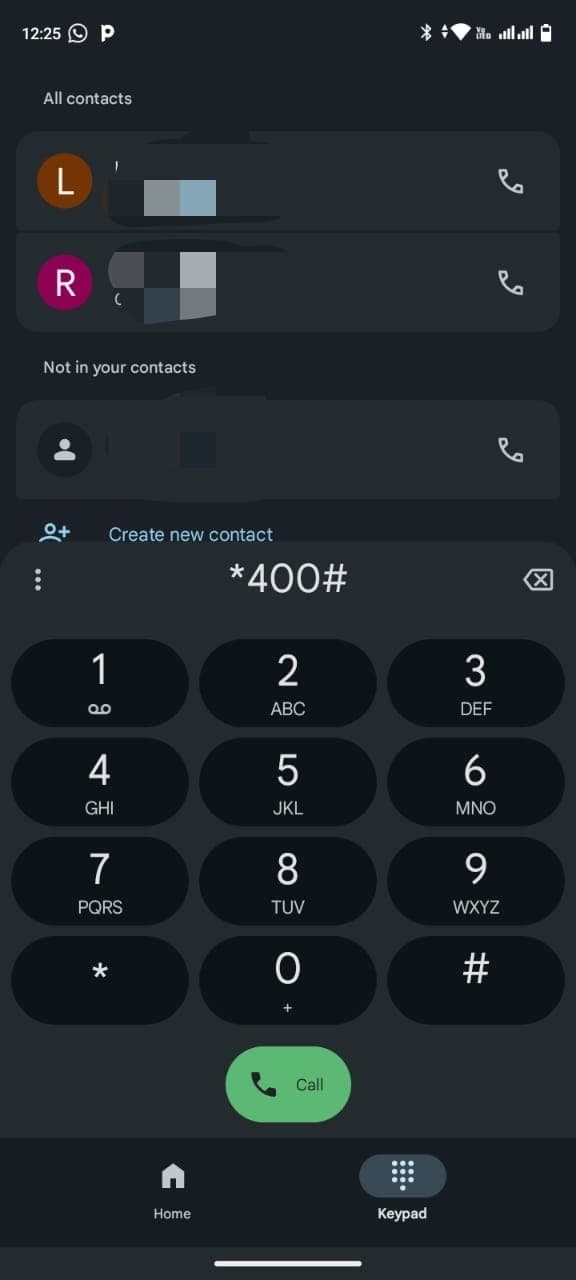
Step 1: Dial the USSD Code
Open your phone dialer and enter *400#, then press the green Call button.
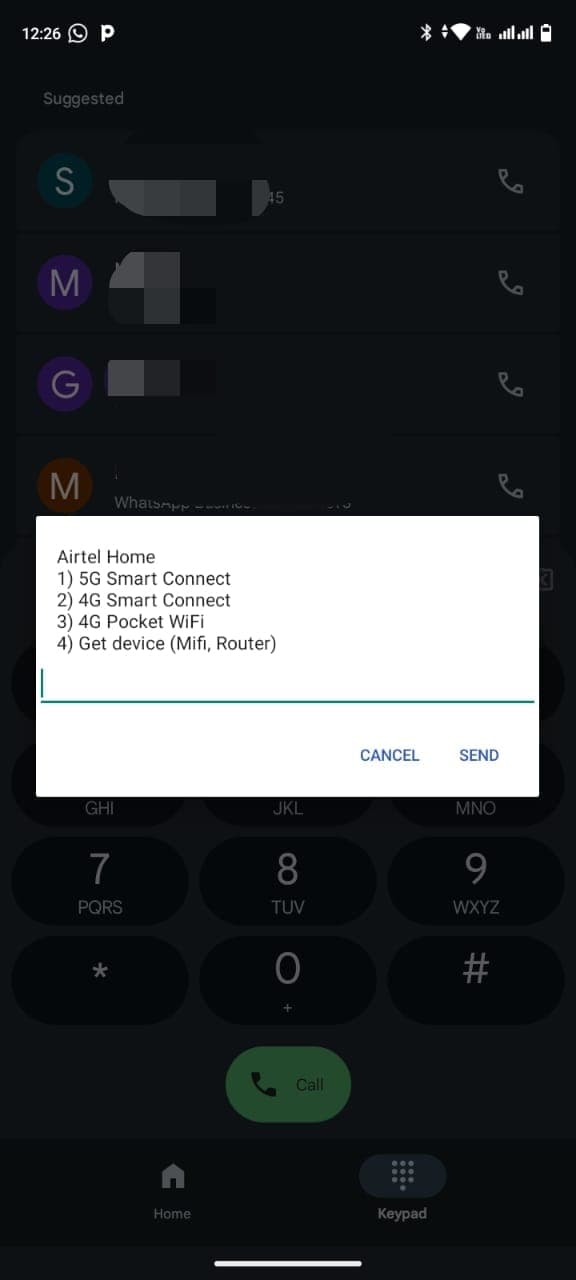
Step 2: Select 5G Smart Connect
From the Airtel Home menu, select option 1 for "5G Smart Connect".
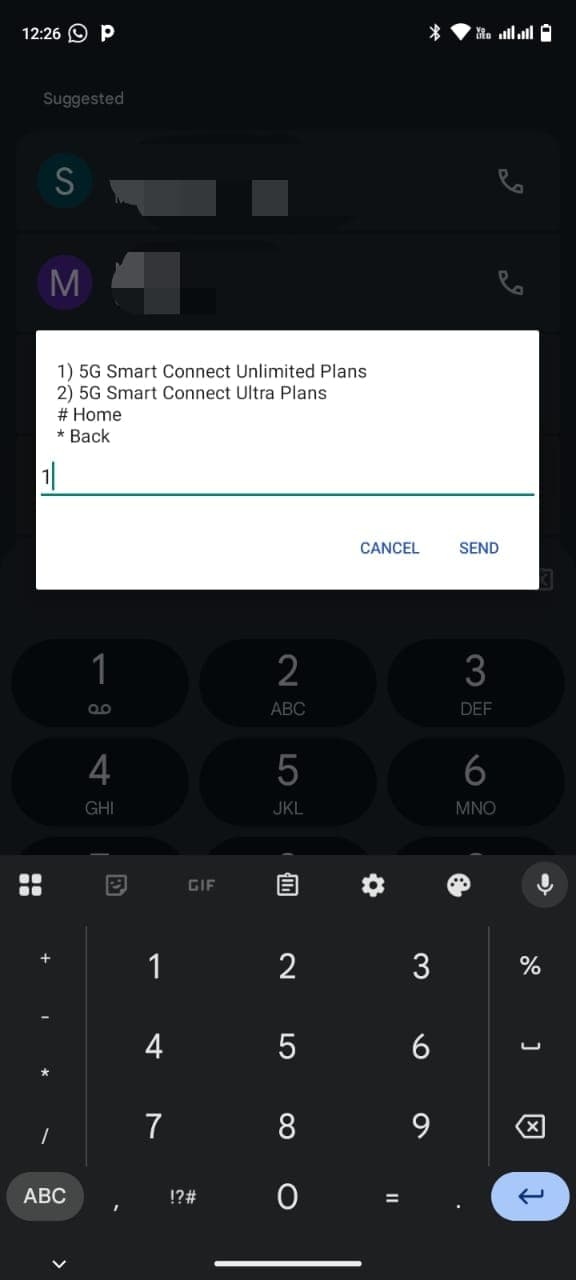
Step 3: Choose Unlimited Plans
Select option 1 for "5G Smart Connect Unlimited Plans".
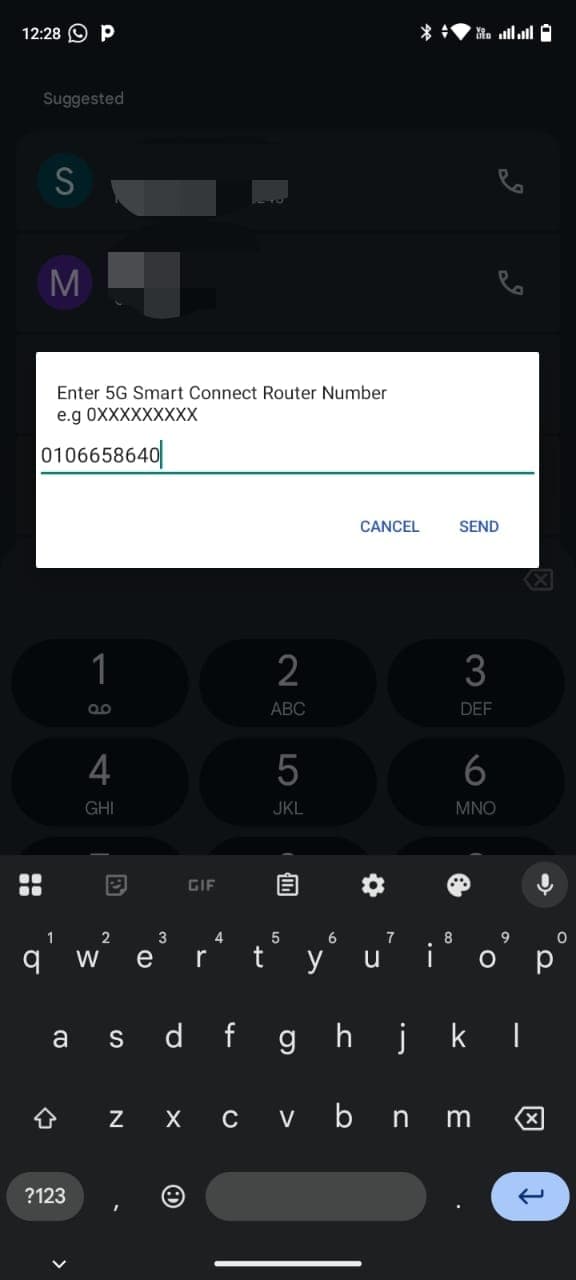
Step 4: Enter Your Router Number
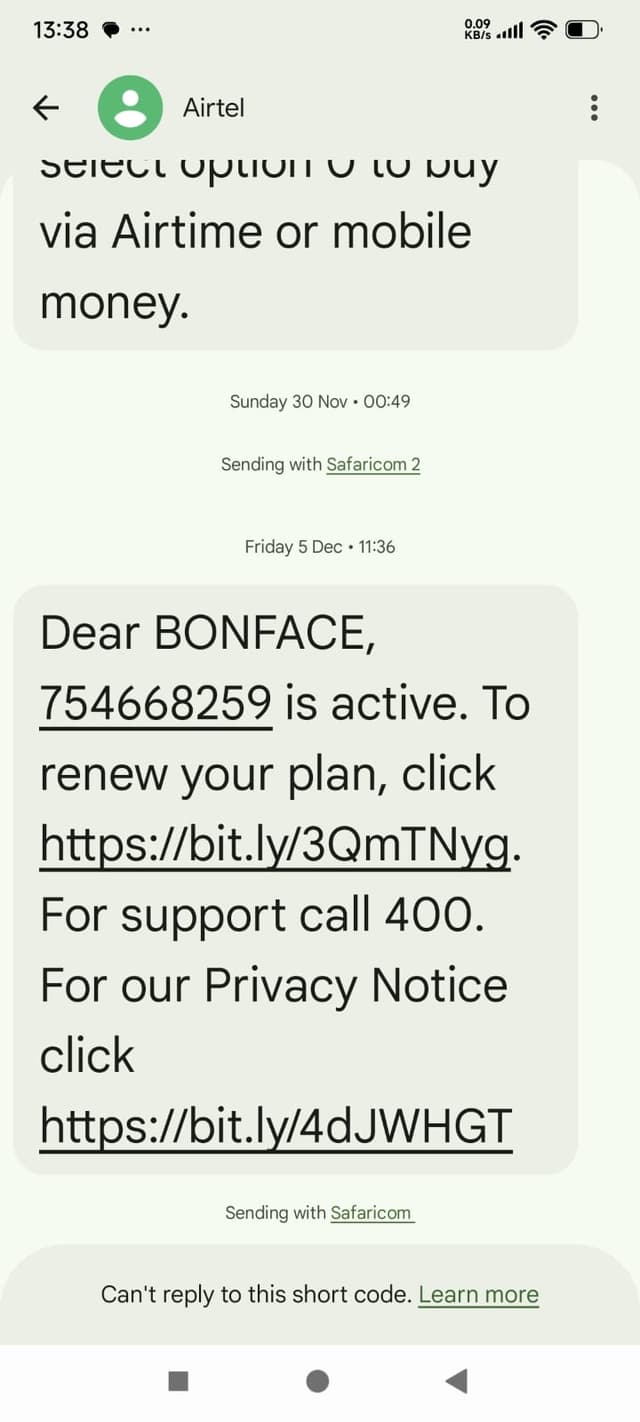
Enter your 5G Smart Connect Router Number. This is the SIM card number that was inserted into your router during the first installation. The number was provided to you when the device was set up. If you can't remember it, check your Airtel SMS messages - Airtel typically sends this number in confirmation messages after installation or when your plan is active.
Example: Check your Airtel SMS messages to find your router number
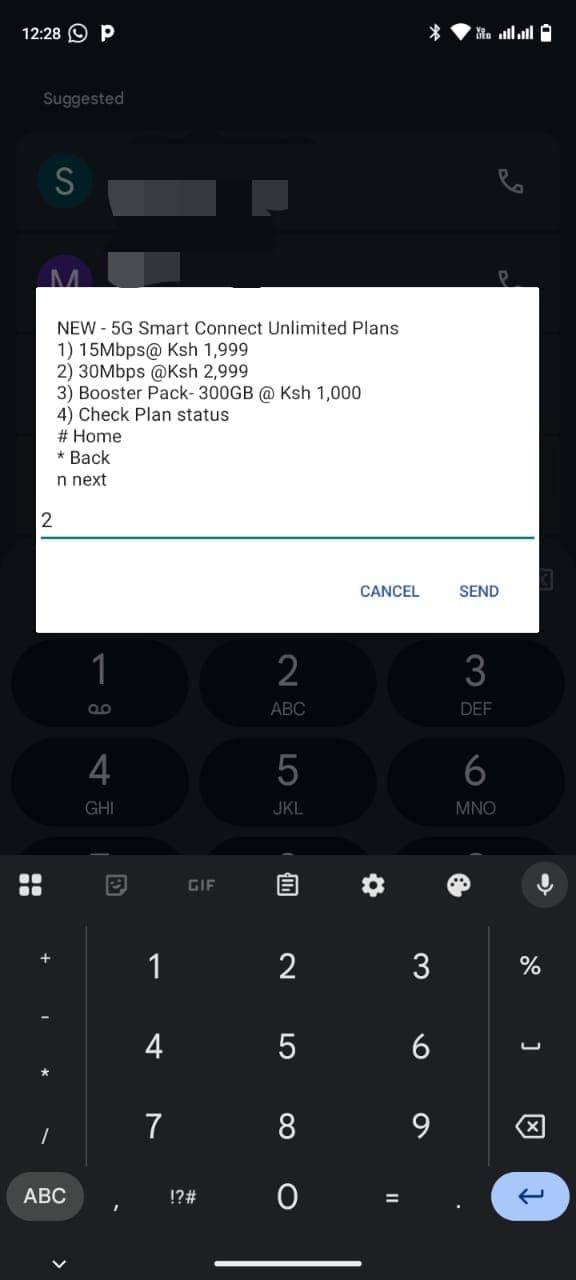
Step 5: Select Your Plan
Choose your preferred data plan:
• Option 1: 15Mbps at 1,999 KES/month
• Option 2: 30Mbps at 2,999 KES/month
• Option 3: Booster Pack (300GB) at 1,000 KES
• Option 4: Check Plan status
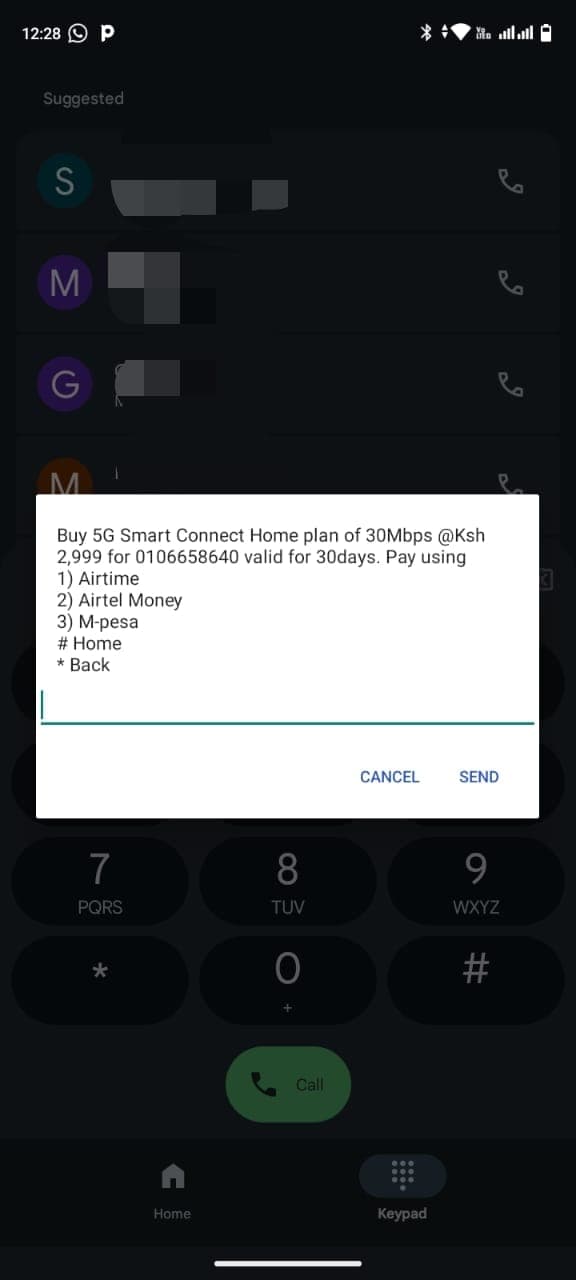
Step 6: Choose Payment Method
Select your preferred payment method:
• Option 1: Airtime
• Option 2: Airtel Money
• Option 3: M-Pesa
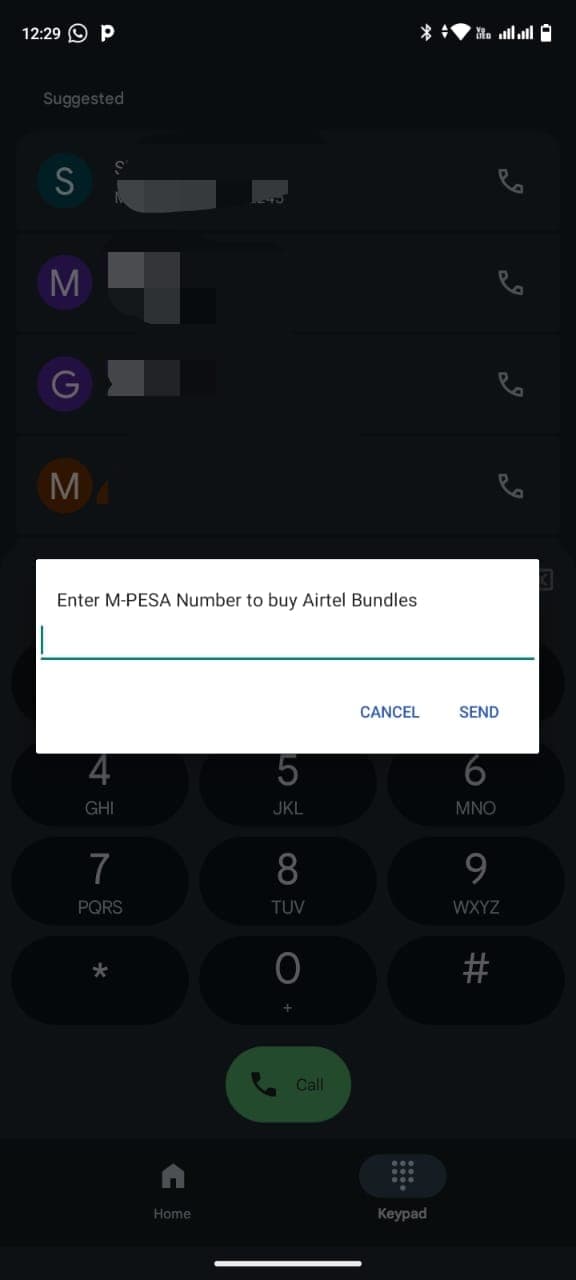
Step 7: Complete Payment (M-Pesa)
If you selected M-Pesa:
1. Enter your M-Pesa phone number when prompted
2. A payment prompt will be sent to your M-Pesa number
3. Enter your M-Pesa PIN to complete the payment
4. Your resubscription is complete!
Note: Payment steps may vary slightly for Airtime and Airtel Money. Follow the on-screen prompts for your selected payment method.
Method 2: Resubscribe, Renew, or Top Up Airtel 5G Router Using My Airtel App - Works Without Airtel Line
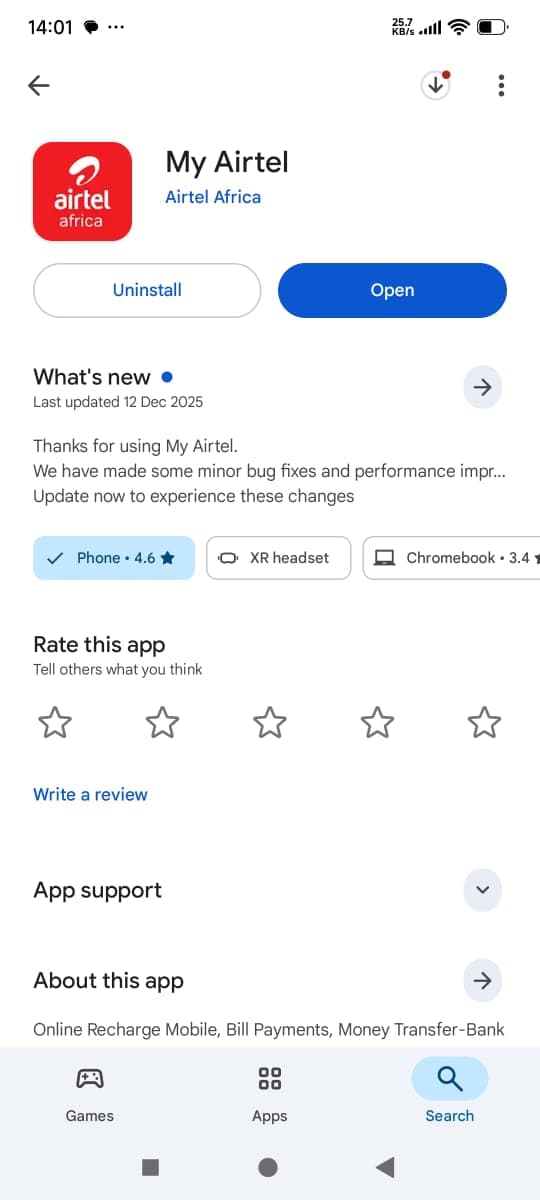
This method works on any phone - you don't need an Airtel SIM card or Airtel phone line. Perfect if you don't have an Airtel line or want to resubscribe, renew, top up, or buy data bundles from any phone. Download the app from Google Play Store.
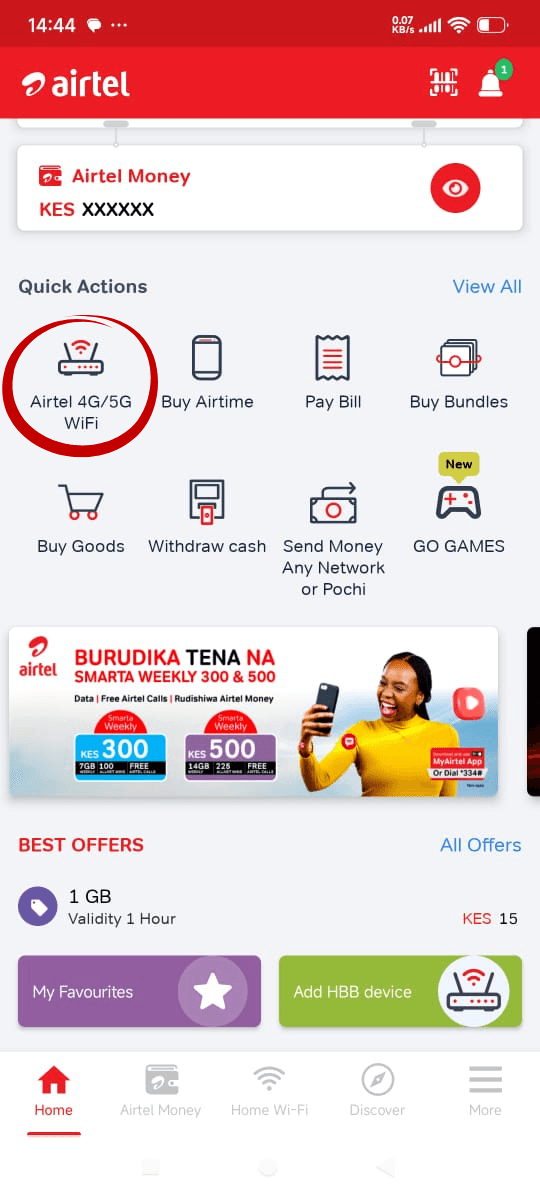
Open the My Airtel app and tap "Airtel 4G/5G WiFi" in the Quick Actions section on the home screen.
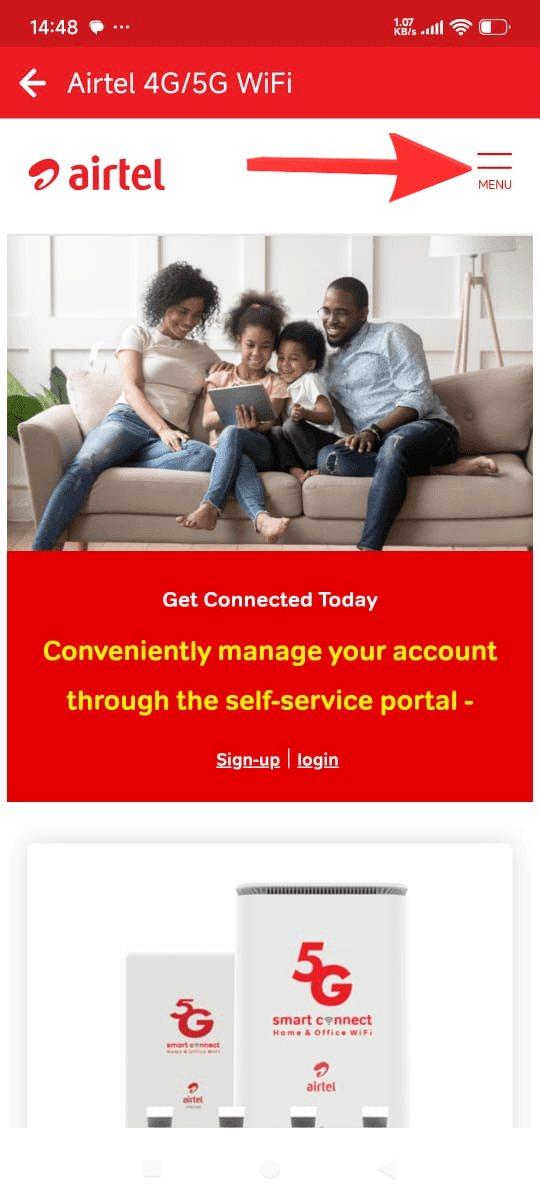
Step 3: Open Menu
Tap the MENU icon (hamburger menu) on the right side of the screen.
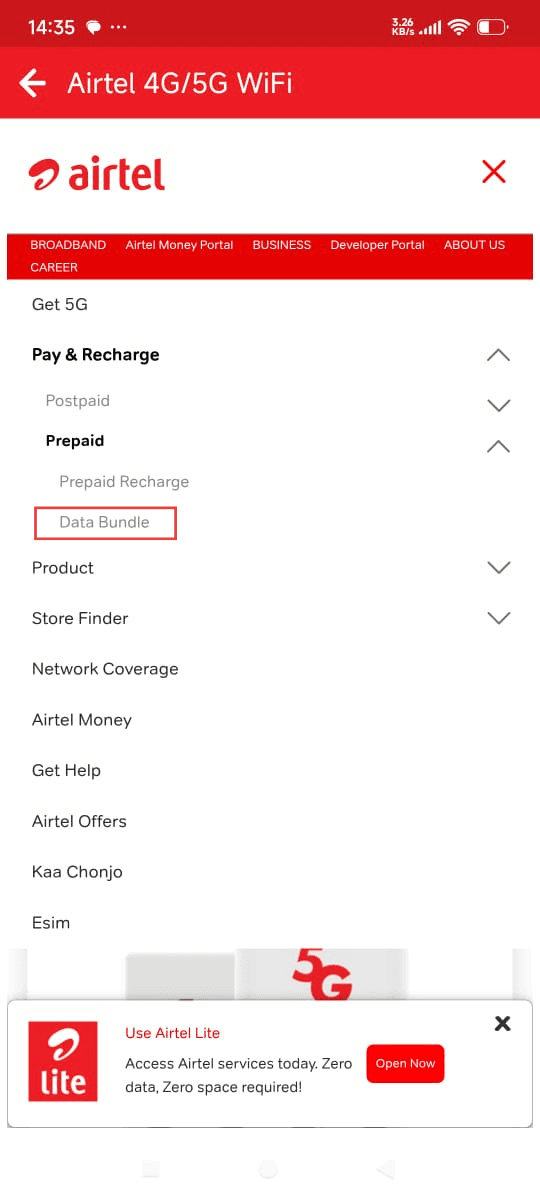
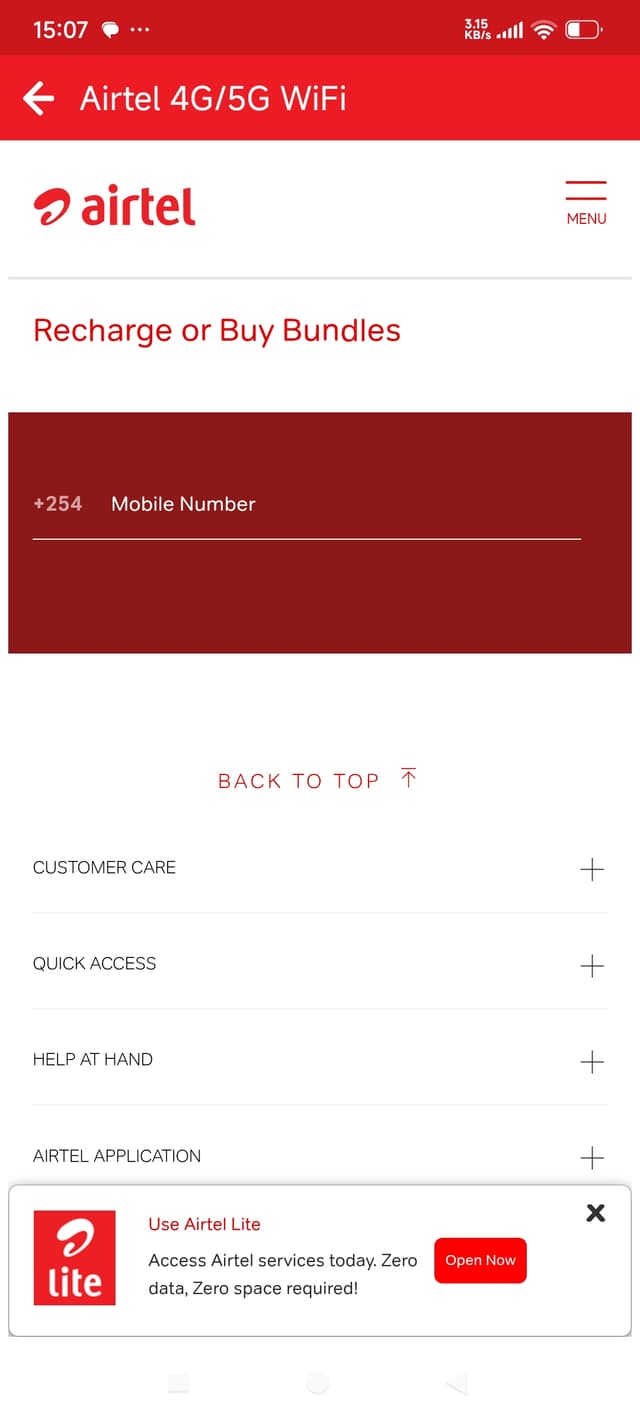
Step 4: Navigate to Data Bundle
In the menu, navigate through: Tap "Pay & Recharge" → Tap "Prepaid" → Tap "Data Bundle".
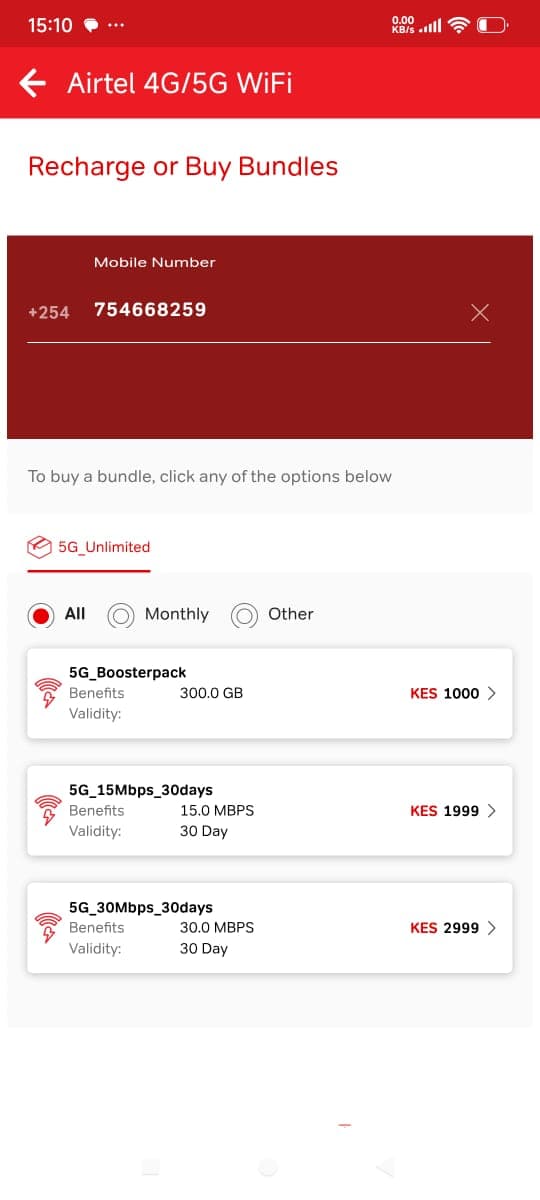
Step 5: Enter Router Number
Enter your 5G Smart Connect Router Number in the mobile number field. This is the SIM card number that was inserted into your router during the first installation. The number was provided to you when the device was set up. If you can't remember it, check your Airtel SMS messages - Airtel typically sends this number in confirmation messages after installation or when your plan is active. See Step 4 in the USSD method above for detailed explanation on finding your router number.
Example: Check your Airtel SMS messages to find your router number
Step 6: Select Your Bundle
Choose your preferred data bundle:
• 5G_15Mbps_30days: 15.0 MBPS, 30 Day validity - KES 1,999
• 5G_30Mbps_30days: 30.0 MBPS, 30 Day validity - KES 2,999
• 5G_Boosterpack: 300.0 GB - KES 1,000
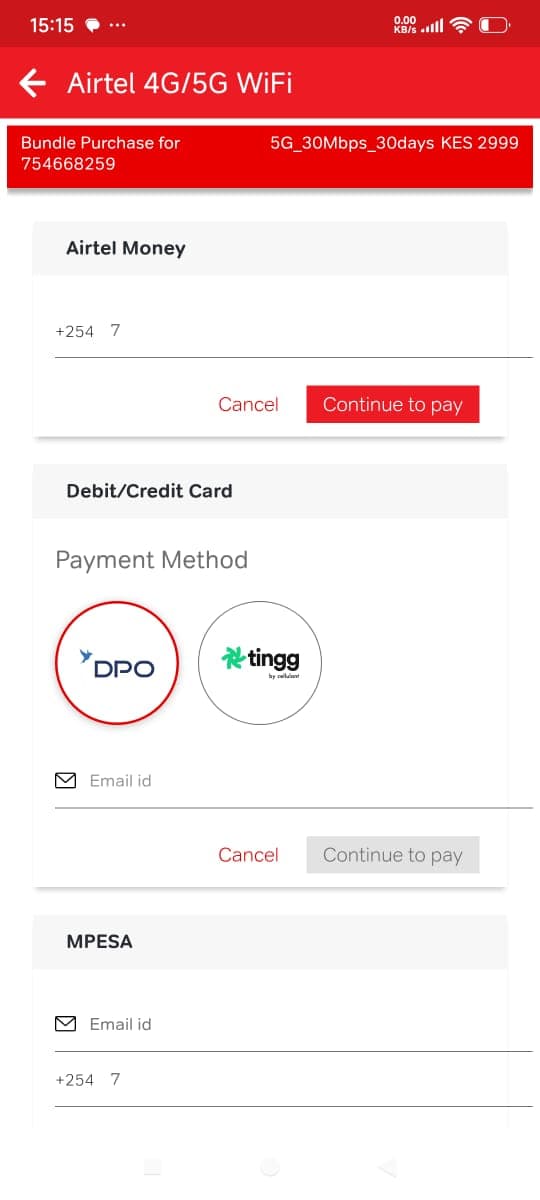
Step 7: Choose Payment Method
Select your preferred payment method:
• Airtel Money: Enter your Airtel Money phone number
• Debit/Credit Card: Select payment gateway and enter email
• M-Pesa: Enter your M-Pesa phone number
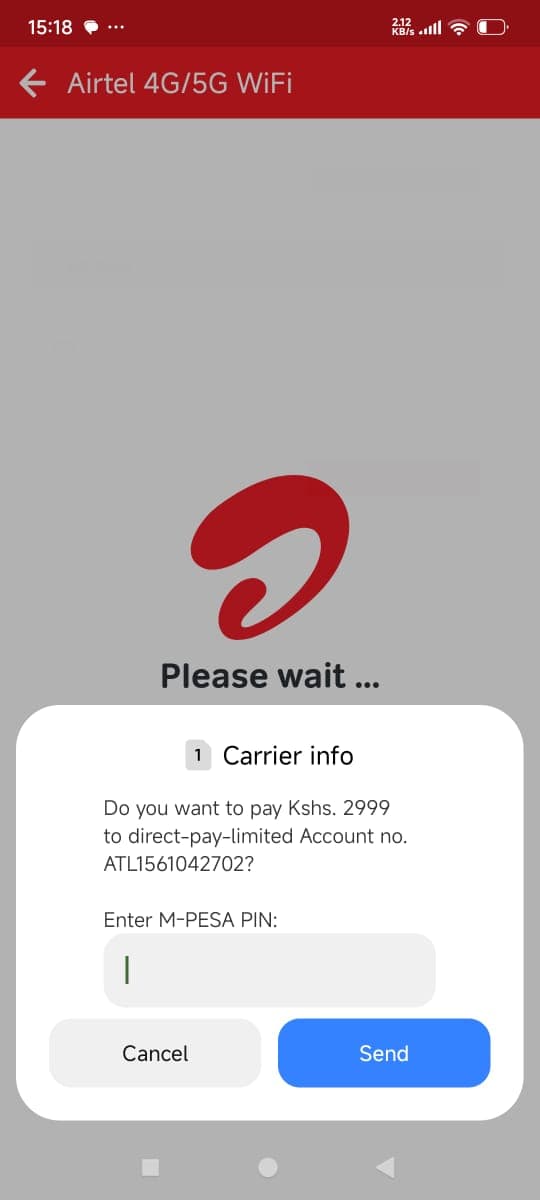
Step 8: Complete Payment (M-Pesa)
If you selected M-Pesa:
1. A payment confirmation dialog will appear
2. Enter your M-Pesa PIN when prompted
3. Tap "Send" to complete the payment
4. Your resubscription is complete!
Note: Payment steps may vary slightly for Airtel Money and Debit/Credit Card. Follow the on-screen prompts for your selected payment method.
💡 Tip: The My Airtel app method doesn't require an Airtel phone line, making it convenient if you don't have an Airtel SIM card. After resubscribing, wait a few minutes for the service to activate. If your internet still doesn't work, check the LED indicators and see our no signal troubleshooting guide. You can also contact Airtel customer care at 0733 100 500.
🔌 Power & Battery Issues
Problem: Device won't turn on
1. Check power adapter is properly connected to router
2. Verify power outlet is working - try a different outlet
3. Check power cable for damage
4. Look for router LED - if no LED lights up, there's a power issue
5. Check the label on router back for correct input voltage
Problem: Router LED stuck on red
If router LED stays red and doesn't progress to blue/green, the router may be stuck in boot:
1. Unplug power adapter, wait 30 seconds, plug back in
2. Check power adapter is providing correct voltage (DC 12V/2A, Input AC 100V-240V, 50Hz-60Hz)
3. Ensure ethernet cable from antenna is connected to the WAN/W/LAN1 port on the router (this is the first port, specifically for connecting the antenna - not the regular LAN ports for devices)
4. Check outdoor unit power LED (LED 5) - if off, the outdoor unit isn't receiving POE power from the router
5. Check outdoor unit ETH LED (LED 4) - should be on (connected) or flashing (data transmitting). If off, check ethernet cable connection
6. If still stuck, contact Airtel support - may need firmware update or replacement
Need a replacement router? We offer fast delivery of new Airtel SmartConnect routers.
If you've tried all troubleshooting steps and your Airtel SmartConnect 5G Router is still not working, contact Airtel customer support for personalized assistance. Alternatively, if you need a replacement device, we offer fast delivery of new routers.